Before you begin
This guide is for Windows x64 PCs. The NVIDIA driver connects Windows to your GPU, WSL2 provides Linux support, and Docker creates an isolated environment for each app. Check these requirements first.
- Windows: a supported Windows 11 release is recommended. Check the current Docker Desktop documentation for supported Windows 10 / 11 versions and system requirements.
- Memory: Docker Desktop requires at least 8 GB of system RAM. AI apps may need more; check their individual requirements.
- Virtualization: right-click Start → Task Manager → Performance → CPU and check that Virtualization is Enabled. If disabled, follow your PC manufacturer’s instructions to enable Intel VT-x or AMD-V in BIOS / UEFI.
- Graphics: GPU apps need a compatible NVIDIA GPU. Check each app's details for VRAM requirements and image size; requirements vary by app.
- Storage and network: allow space for extracted images, models and task output. App installation and account sign-in require an internet connection.
01 / Install the NVIDIA driver
For GPU apps, install a suitable Windows graphics driver first. You can skip GPU steps for apps that explicitly support CPU execution.
Identify your GPU, then download
- Right-click Start → Task Manager → Performance → GPU and note the full NVIDIA GPU model. A laptop may show both integrated graphics and an NVIDIA GPU; use the NVIDIA entry.
- Open the NVIDIA website below. Under Manual Driver Search, select the product category, series, exact GPU model and Windows version, then select Find.
- Download the latest Game Ready or Studio driver that matches your device. Do not copy another PC’s GPU model or a version number shown in a screenshot.
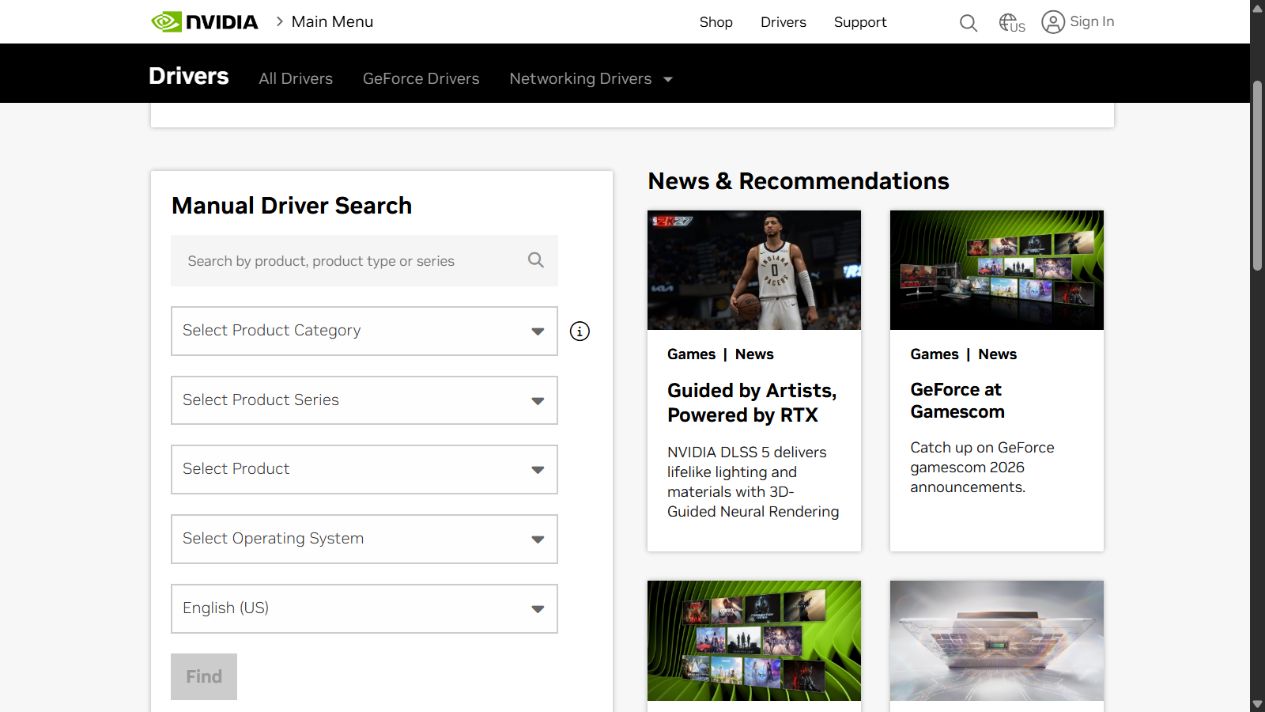
Figure 1 · From top to bottom: category → series → exact model → operating system → language. Find your Windows version under Settings → System → About.
Official source ↗View full size ↗Run the installer, then restart
Open the downloaded installer, extract the files when prompted and continue. NVIDIA Graphics Driver installs the driver; the option that includes NVIDIA App also installs the driver management app. Read and accept the license to continue, complete the installation and restart your PC.
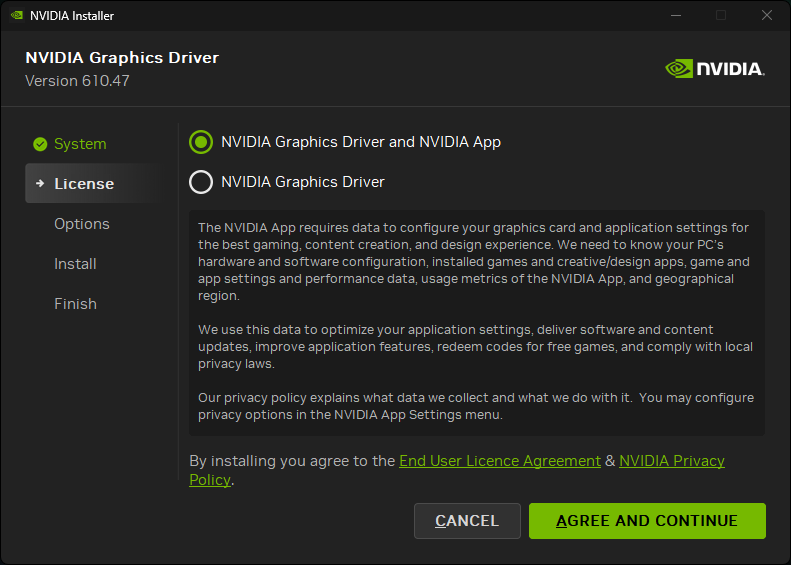
Figure 2 · Official NVIDIA installer example. Identify the driver options and the continue button at the bottom right. The pictured version is not a required Novaber version.
Official source ↗View full size ↗After restarting, search for PowerShell in Start and open it. Paste the command below and press Enter.
nvidia-smiReady to continueA table containing GPU Name and Driver Version means you can continue. If the command fails or no NVIDIA GPU appears, check the driver installation first. CUDA Version describes driver support; it does not mean you must separately install that version of CUDA.
The current 3D reconstruction image uses CUDA 12.9.1. Keep your Windows driver updated and check compatibility with the app's CUDA version; Linux driver version numbers are not interchangeable with Windows versions.
02 / Install and check WSL2
Right-click Windows Start and select Terminal (Admin) or Windows PowerShell (Admin), then approve the Windows prompt. For a first-time installation, paste this line and press Enter. It installs WSL and the default Ubuntu distribution.
wsl --installRestart when prompted. If Ubuntu asks for a username and password on first launch, create them; the password is not displayed as you type. Run the remaining commands in Windows PowerShell. If WSL is already installed, start with the update and checks below.
Update WSL to the latest version. Restart if prompted, then run each check below.
wsl --updateCheck the WSL package version, then whether your distribution uses WSL2. These are different version numbers:
wsl --version
wsl --list --verbose
Ready to continueThe WSL version from wsl --version must be at least 2.1.5. Ubuntu or another installed distribution should show 2 in the VERSION column. Docker works from Windows without a separate Ubuntu distribution, so you do not need to add one just for Docker.
Only run this line if an existing distribution shows VERSION 1. Replace Ubuntu with its exact name from the list, then check again after conversion.
wsl --set-version Ubuntu 203 / Set up Docker Desktop
Open the Docker website and download the Windows - x86_64 installer. This is the version for typical Intel and AMD Windows x64 PCs. This guide does not cover Arm devices.
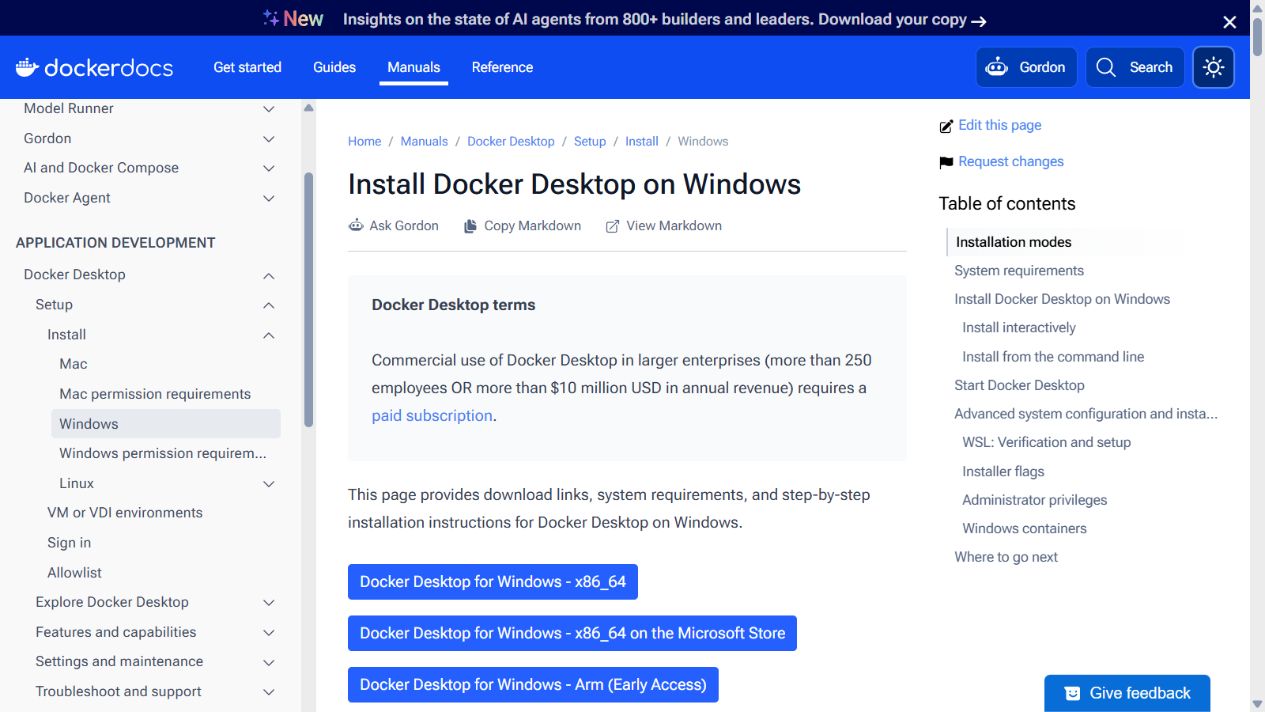
Figure 3 · Use the first Windows - x86_64 button to download the installer. The other buttons open Microsoft Store or download the Arm version.
Official source ↗View full size ↗Install and start Docker
- Double-click Docker Desktop Installer.exe and follow the wizard. If asked about installation scope, the default Per-user option is suitable for a personal PC.
- If a backend option appears, select Use WSL 2 instead of Hyper-V. Some systems select WSL2 automatically and do not display this option.
- Restart if prompted. Open Docker Desktop from Start, review and accept the first-run terms if you agree, and wait for the engine to start. Finishing the installer does not mean Docker is running.
Check the runtime settings
- In Docker Desktop, open the Settings icon → General and enable Use WSL 2 based engine. If the option is hidden, WSL2 may already be enabled by default; continue with the checks below.
- Use Linux containers. If the Docker menu in the system tray offers Switch to Linux containers, select it. If it offers Switch to Windows containers, Linux mode is already active.
- Resources → WSL Integration is only needed to run Docker commands from a terminal such as Ubuntu. You do not need to enable it specifically for Novaber on Windows.
- If you changed settings, select Apply or Apply & restart and wait for the engine to become ready. Return to Windows PowerShell for the check below.
docker version
docker info --format '{{.OSType}}'
Ready to continuedocker version shows both Client and Server, and the second command returns linux. If only Client appears or the daemon cannot be reached, open Docker Desktop and wait for startup before installing an app.
Read the official Docker WSL2 settings guide ↗04 / Verify container GPU access
Before using a GPU app, copy and run this entire command in Windows PowerShell. The first run downloads a test image, which may take time. A download error is not a GPU failure.
docker run --rm -it --gpus=all nvcr.io/nvidia/k8s/cuda-sample:nbody nbody -gpu -benchmarkReady to continueThe command finishes successfully and prints GPU information and a performance result such as GFLOP/s. The container can access the GPU; individual apps still have their own VRAM and driver requirements.
This Windows + Docker Desktop setup uses the Windows GPU driver. Do not install a Linux NVIDIA display driver inside WSL. This workflow does not require a separate Windows CUDA Toolkit installation; the app image supplies its CUDA runtime.
Read NVIDIA’s WSL driver guidance ↗ Read Docker's GPU validation guide ↗05 / Install your first app
Once the environment is ready, return to Novaber to install an app.
- Download and install Novaber for Windows, then follow the sign-in prompts in the app.
- Choose an app from the catalog and check its GPU, VRAM and storage requirements.
- Select Install locally and wait for image downloads and container setup to finish. The first installation depends on image size and network speed.
- When the app is ready, select Open workspace to start working in its local interface.
Ready to continueOnce the workspace opens and completes a small task, setup is complete. For later sessions, make sure Docker Desktop is running before opening Novaber.
Explore released apps →Trouble with installation?
Docker Desktop will not start
Check BIOS / UEFI virtualization, run wsl --update and restart if prompted. Check your Windows and WSL versions against Docker Desktop's system requirements.
The container cannot find a GPU
First confirm that nvidia-smi works on Windows. Check that Docker uses the WSL2 backend and Linux containers. Update the Windows NVIDIA driver, then rerun the GPU validation command on this page.
nvidia-smi is not found inside WSL
Try /usr/lib/wsl/lib/nvidia-smi. Do not install a Linux graphics driver inside WSL to resolve this. Also check your Windows host driver and WSL updates.
The GPU test passes, but an app reports CUDA is unavailable
Check compatibility between the image's CUDA version and the host driver, and confirm that the app uses a GPU-enabled runtime. Passing the basic GPU test does not verify every app's dependencies or VRAM requirements.
An app download or installation fails
Check that Docker is running, your network can reach the image registry and sufficient disk space is available. Keep the error message and check the log directory below. Do not clear Docker data or app directories just to retry an installation.
Logs and support
Enter the following path in the File Explorer address bar to find installation logs:
%APPDATA%\novaber\logsInclude your Windows version, GPU model, app name, steps and relevant errors in a report. Remove email addresses, tokens and personal file paths from logs before sharing.
Report an issue on Gitee ↗