NOVABER / Document
Scanned PDF OCR and table extraction
Run batch OCR on scanned PDFs and images locally. Extract text and tables with PaddleOCR, GLM-OCR or OvisOCR2, review against the source, and export Word, Excel or searchable PDF files.
For Windows 10 / 11 x64. Apps require Docker; check each app for GPU and VRAM requirements.
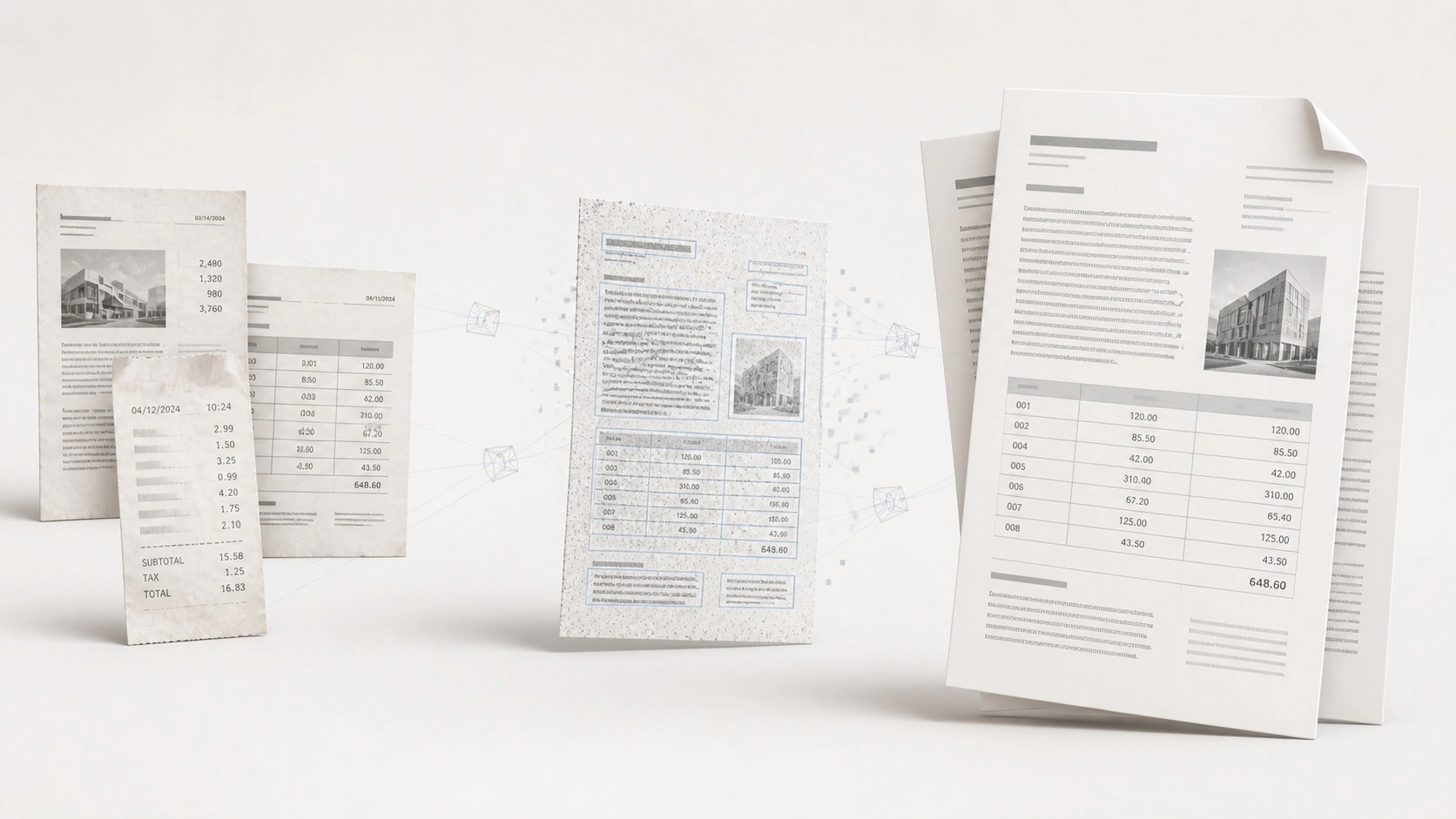
What you can use it for
Batch recognition for images and PDFs
PaddleOCR, GLM-OCR, and OvisOCR2 model support
Text, layout, and table-structure extraction
Side-by-side review and export to five formats
Turn a scanned PDF into a searchable document
Input
Import scans, screenshots, or PDFs in batches and select pages
Recognition
Choose a recognition model to extract text and document structure
Review
Review text and table cells alongside the original pages
Output
Export editable text, documents, spreadsheets, and searchable PDF
Requirements
Setup guide- Operating system
- Windows 10 / 11 · x64
- Runtime
- Docker Desktop
- Compute
- NVIDIA GPU required (CUDA 12.6)
- Video memory
- VRAM varies by model and page complexity
- Image and model size
- Backend/worker ~18.1 GB unpacked each; models extra
An internet connection is needed to download applications and sign in. Download size and setup time depend on the image and your connection.
Get started with OCR Document Recognition
Installation guideInstall Novaber
Download and install Novaber for Windows, and prepare Docker Desktop.
Check requirements
Choose this application in the catalog and check the GPU, VRAM, and storage requirements listed on this page.
Prepare the app
Select Install locally and wait for the image download and container setup to finish.
Open the workspace
When the application is ready, select Open workspace to start working in its local interface.
Application questions
Can the OCR application process images and PDFs?
Yes. OCR Document Recognition processes images and PDFs in batches on your computer, extracting text, layouts and tables with source-image comparison and correction.
When should I export scanned pages to Word, Excel or searchable PDF?
Choose Word (DOCX), TXT or Markdown to edit recognized text. To work with extracted tables, check rows, columns and figures, then export Excel (XLSX). Choose searchable PDF for an archive whose text you can find later.
Which OCR models are available?
The application uses PaddleOCR, GLM-OCR and OvisOCR2. Video memory needs depend on the model and page complexity. Review preparation status in Novaber and the current requirements on this page.
Explore more local AI applications
Built with
- PaddleOCR Apache-2.0
- GLM-OCR MIT
- OvisOCR2 Apache-2.0
- PP-DocLayoutV3 Apache-2.0
Third-party names and trademarks belong to their respective owners. Use and distribution are governed by each project's license and do not imply endorsement of Novaber.